
You land, your phone shows no signal, and the taxi driver quotes 900 of a currency you met an hour ago. A converter website can't load without a connection, so the browser tab you were counting on is no help. An app that keeps its rates on your iPhone still gives you the answer.
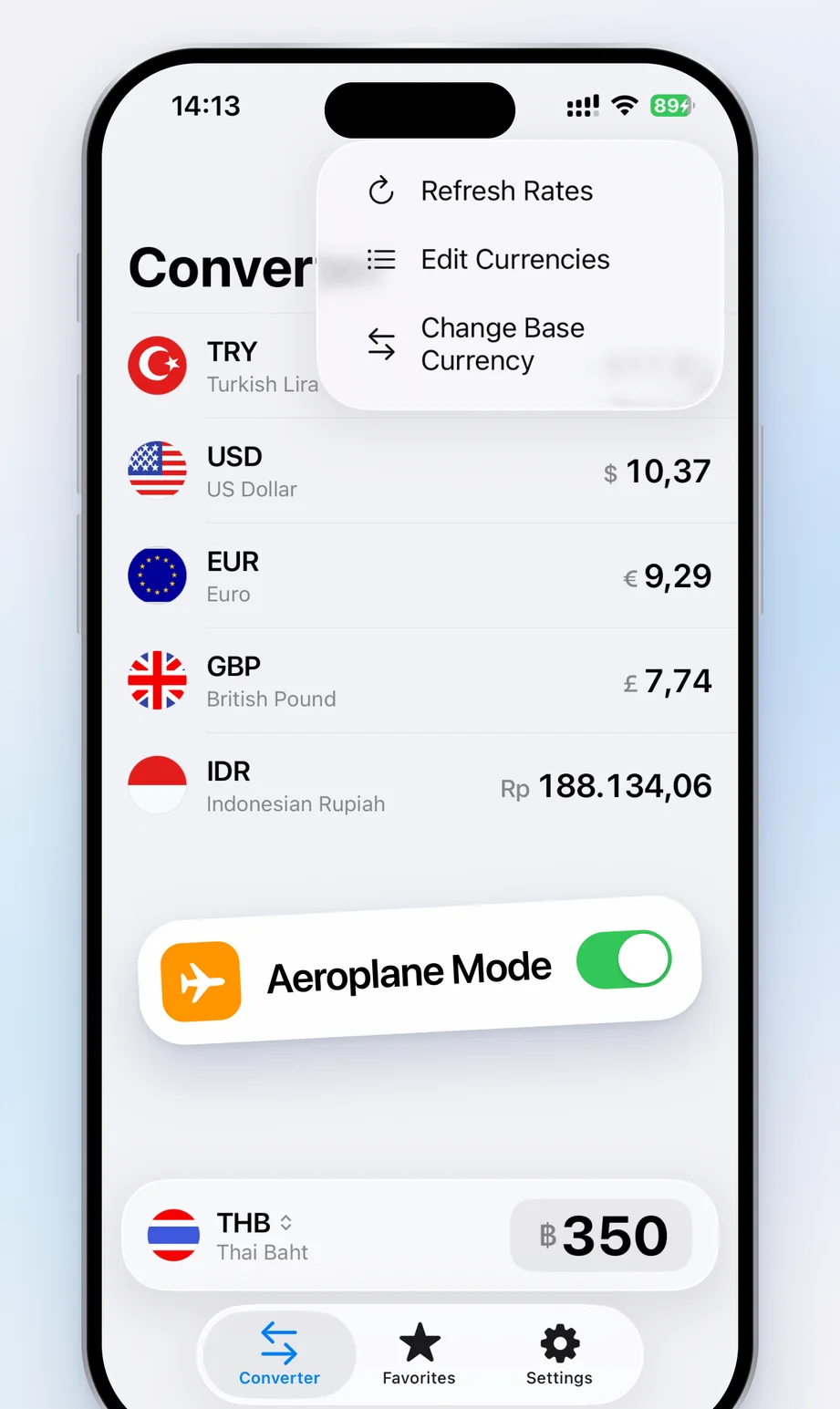
Currency Converter saves the latest rates on your device. Set it up once before you leave and it works in aeroplane mode, on a metro platform, or anywhere your roaming plan doesn't reach.
Set it up before you leave
- Open the app while you have Wi-Fi, so it downloads the latest rates.
- Go to Favorites and tap + to add your home currency and one for each country on your route. You can search by code or by name, so "THB" and "baht" both work.
- Tap Edit and drag the list into the order you want, with the currency you'll use most at the top.
- On the day you fly, pull down on the converter to refresh the rates. You can also tap the ⋯ menu and choose Refresh Rates.
Check that it works
Swipe down from the top-right corner of the screen to open Control Centre and turn on aeroplane mode. Open the app and type an amount. If every currency on your list shows a result, you're ready.
What still works with no signal
Everything you use to convert. You can type amounts, tap a currency to make it the base, and use the calculator, because all of that happens on your phone. The only thing that stops is the rate update. The app keeps using the last rates it saved until you're back online.
How old is too old?
For a coffee or a bus ticket, rates from a few days ago are close enough. Major currencies usually move by small amounts over a few days, though a currency in crisis can move much faster. Before anything large, such as a hotel bill or car hire, find Wi-Fi and refresh. A hotel or café connection is enough, and once the new rates are saved you can go offline again.
Saved rates tell you roughly what something costs. Your card will charge its own rate, and the mid-market rate explains why the two differ.